
Mac setup guide
Halcyon controls the sleep sequence on its own schedule. To avoid conflicts with macOS power settings, it automatically manages most related system settings while active.
However, the screen saver timer cannot be controlled by apps, so this page walks you through the one change you need to make.
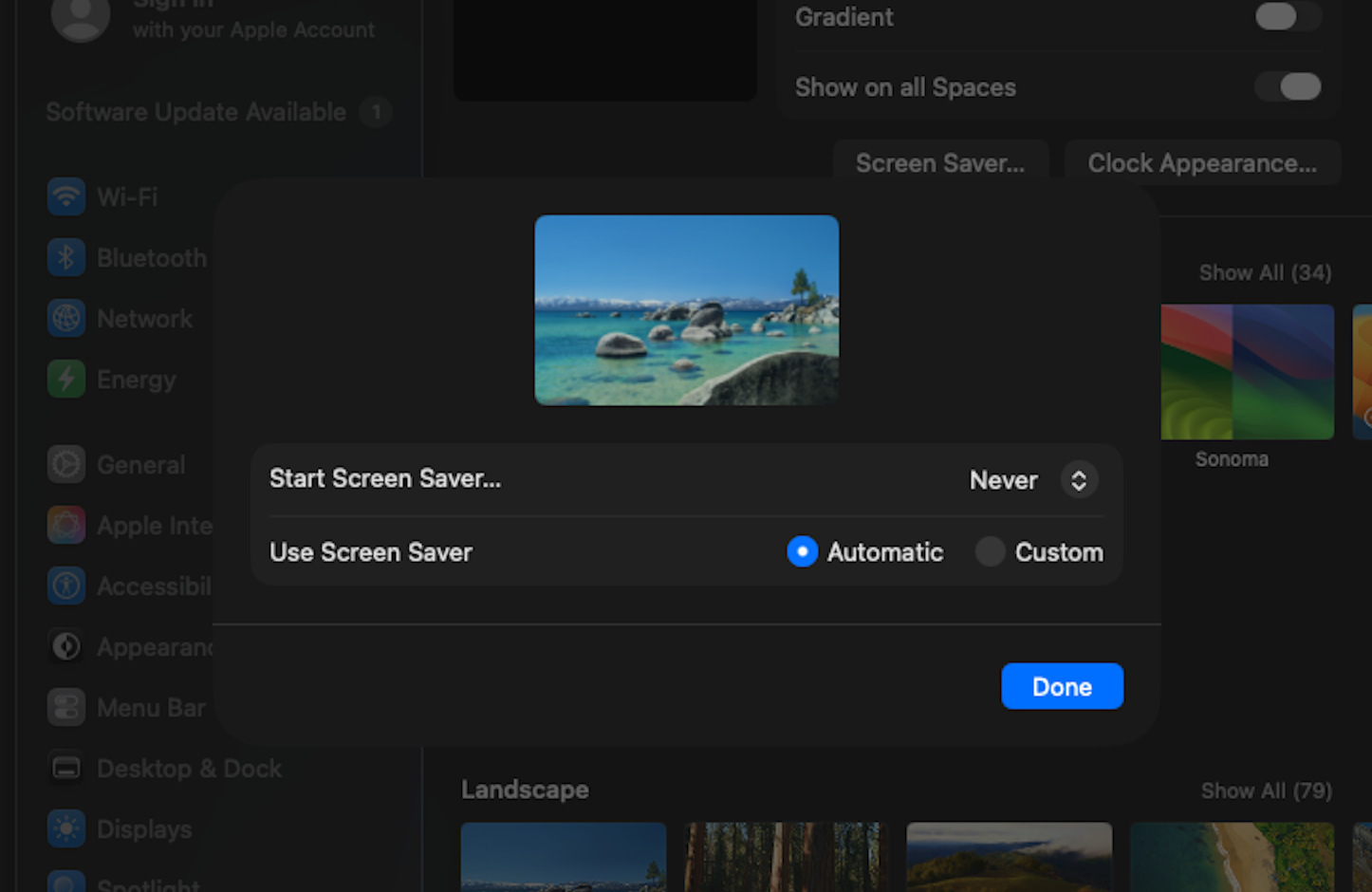
Change your screen saver setting
macOS does not provide an API for apps to suppress the screen saver timer. If this timer is enabled, macOS may start the screen saver before Halcyon gets a chance to.
Screen saver
System Settings → Screen Saver
Set "Start after" to "Never". Halcyon starts the screen saver on its own schedule, so the built-in macOS timer is not needed.
Everything else is handled automatically
While Halcyon is active, the following macOS settings are controlled automatically. Stopping Halcyon or quitting the app restores macOS defaults.
You don't need to change these settings. Halcyon disables them automatically while it is running.
Recommended: For extra safety when Halcyon is not running, consider keeping macOS's own auto sleep and display-off settings enabled as a backup.
You're all set
Once you've changed the screen saver setting, Halcyon takes care of the rest. All sleep and display-off timing is controlled by Halcyon. Stopping it restores the macOS defaults.